Modified 4 March, 2024
Hello!
Welcome to the guide for how to set up your NVA backup device. If you are reading this, that means you have received a backup set from Adroit Technologies LTD. This guide will provide you with a step-by-step process on the setup of this device.
Step 1: Unpacking
Unpack your box, and make sure you have all elements neatly laid out and easily accessible. Before we begin the setup process, please ensure you have the following items included in your box:
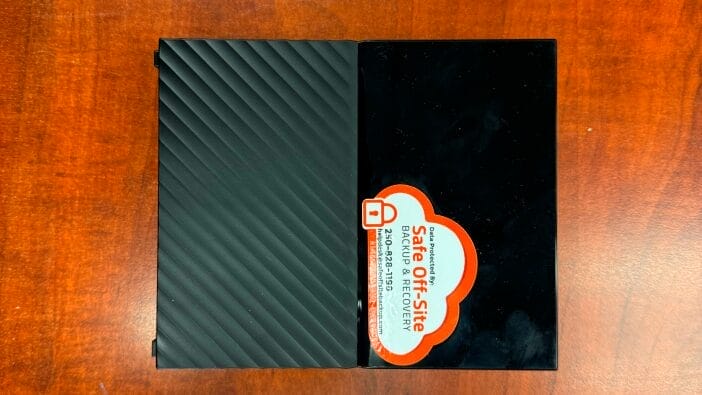
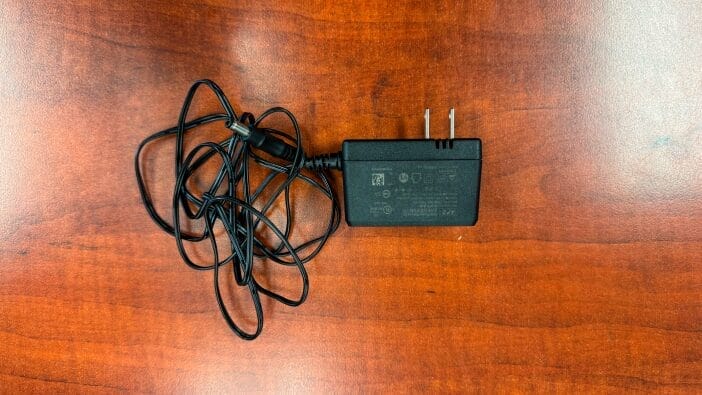
WD Power Adaptor
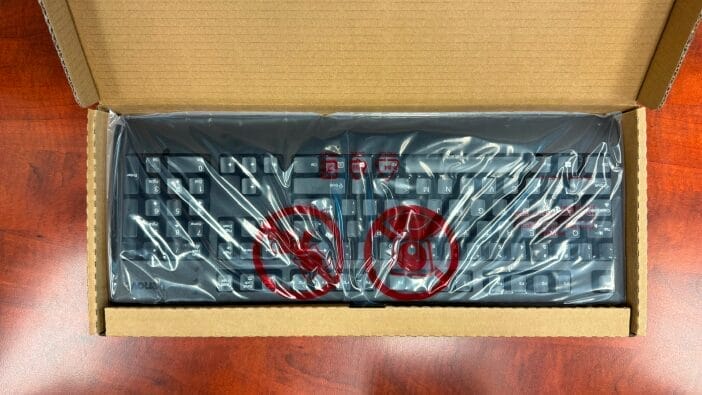
Lenovo Keyboard
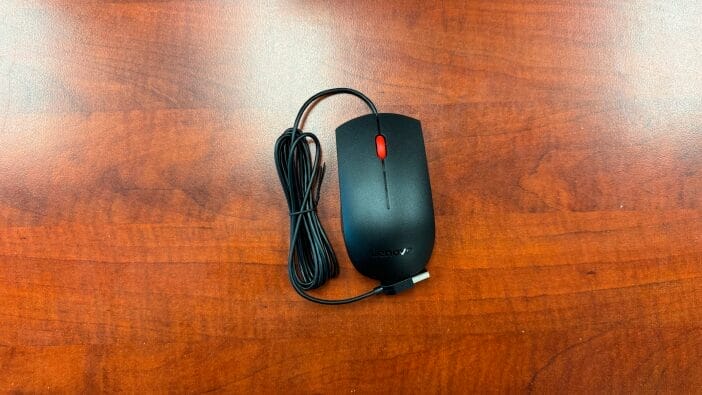
Lenovo Mouse
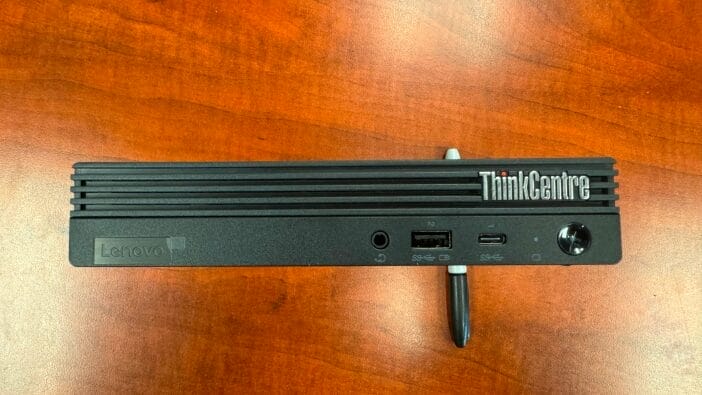
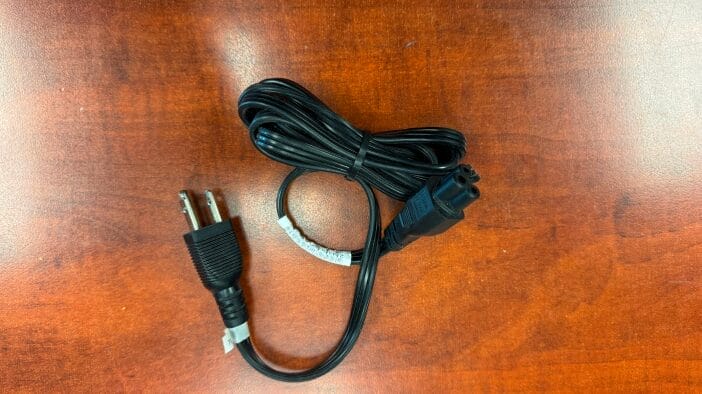
Lenovo Power Adaptor
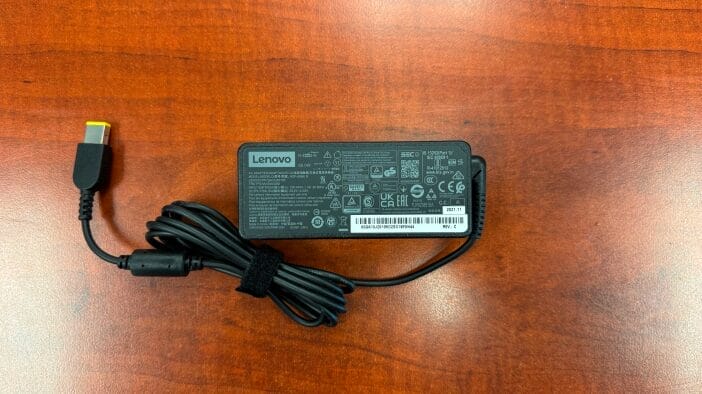
Lenovo Power Supply Brick
Lenovo WIFI Dongle
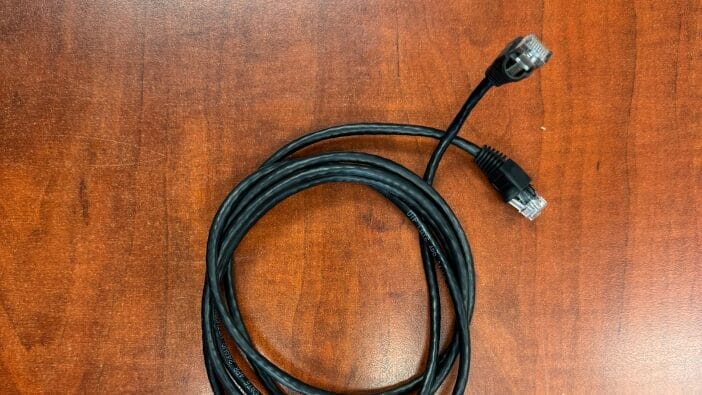
Network Patch Cable
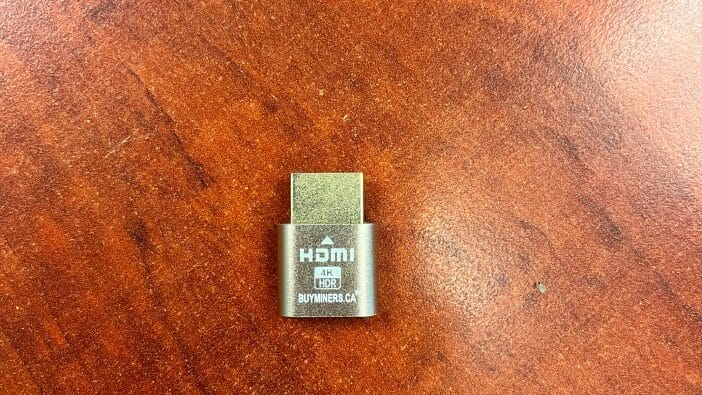
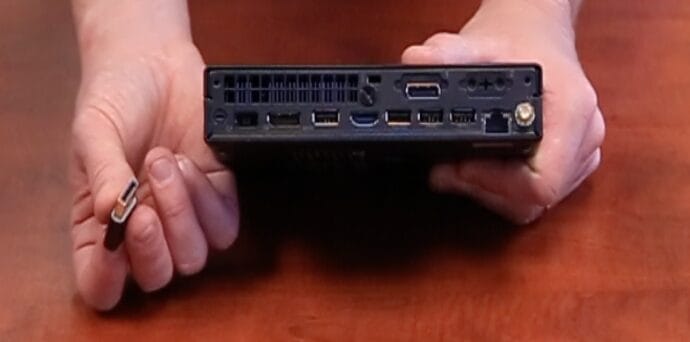
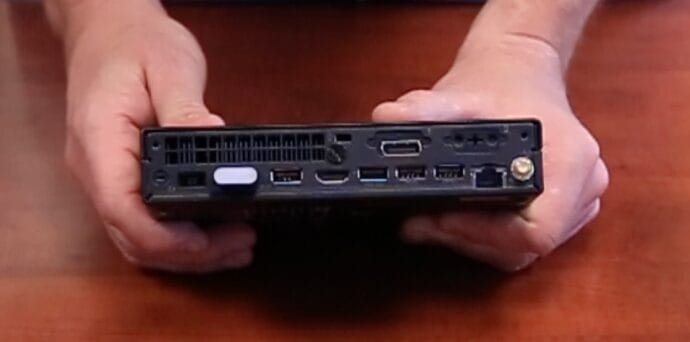
HDMI Dummy Dongle
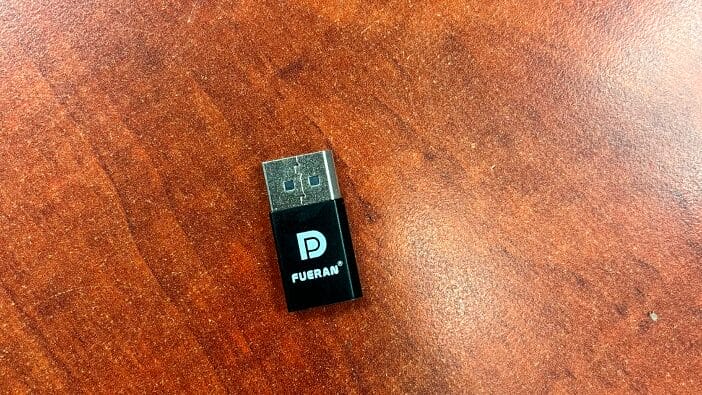
DisplayPort Dummy Dongle
Step 2: Identify Your Setup
Before you begin installing any devices, you want to first locate the server and switch. Once this is located, you want to ensure there is an open port to attach the backup computer. Once this port is located, you also want to be sure there is a surge protected power source that has open outlets for both the backup computer, and the external hard drive.
Locate your server
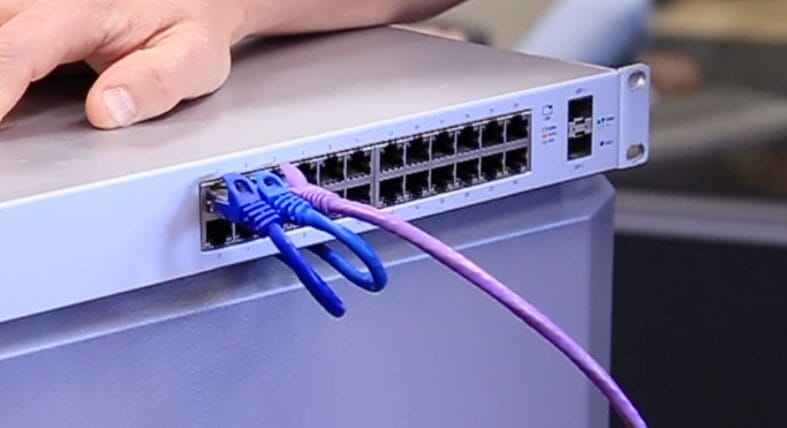
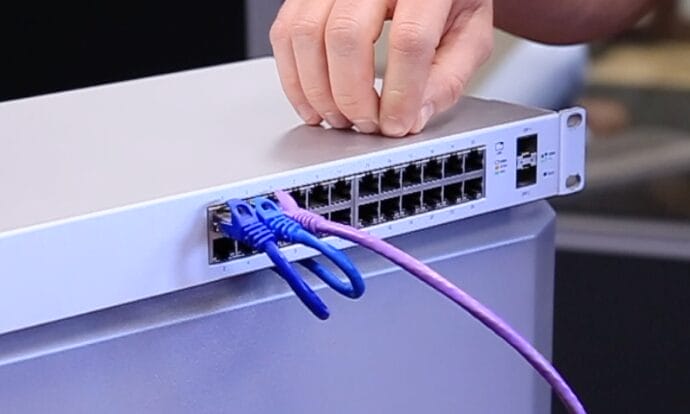
Find an empty port on the switch
Finally, you want to find an out-of-the-way and safe location to store the server and external hard drive. It should be somewhere where it cannot be bumped, jostled or accidently unplugged. Please perform the rest of the setup with the backup computer and hard drive in this location.
Find the port
Plug in the adapter
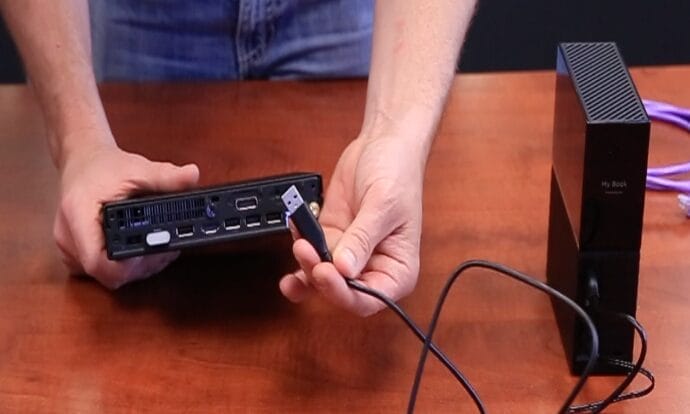
Locate any available USB port
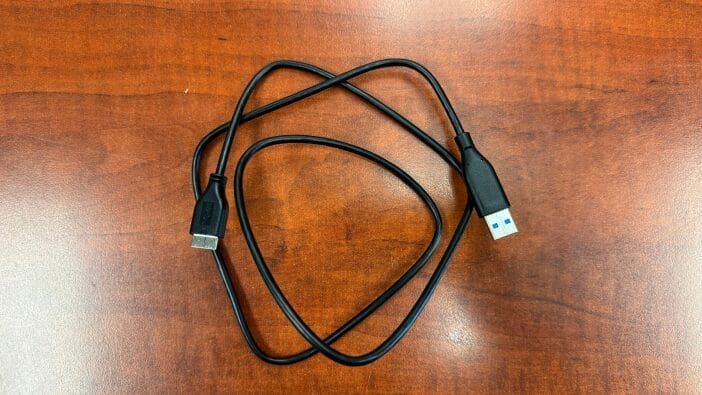
Connect the hard drive
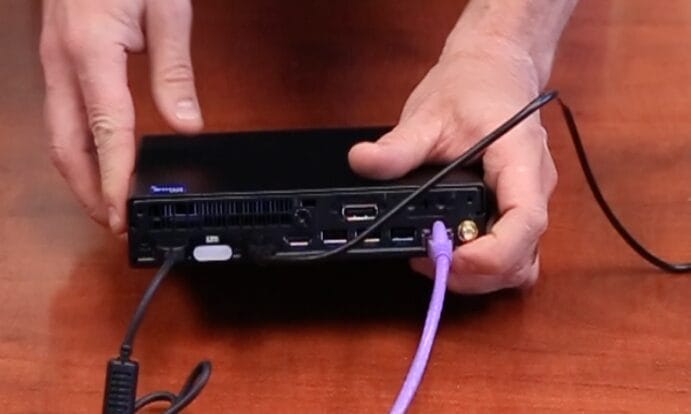
Connect the network to the computer
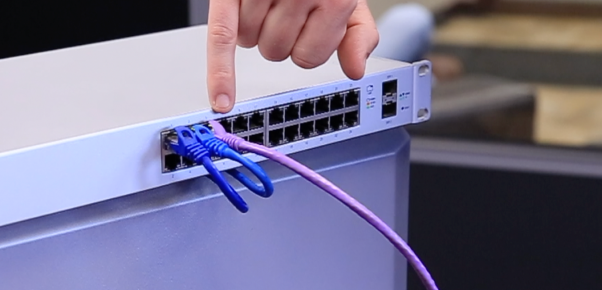
Connect to an open port
Feel the hard drive for activity
Step 5: Verify the Connection
Once the device is powered on and connected, you can verify the connection by checking the activity lights. There will be a hard drive activity light active on the backup machine, as well as a network activity light. If both of these are on/blinking, that means everything should be connected correctly. You can check the light above the port you are using on the switch as well, and this will further confirm the connection. If everything is active, then all you need to do is notify Adroit Technologies that the backup computer is active.
Check for activity light
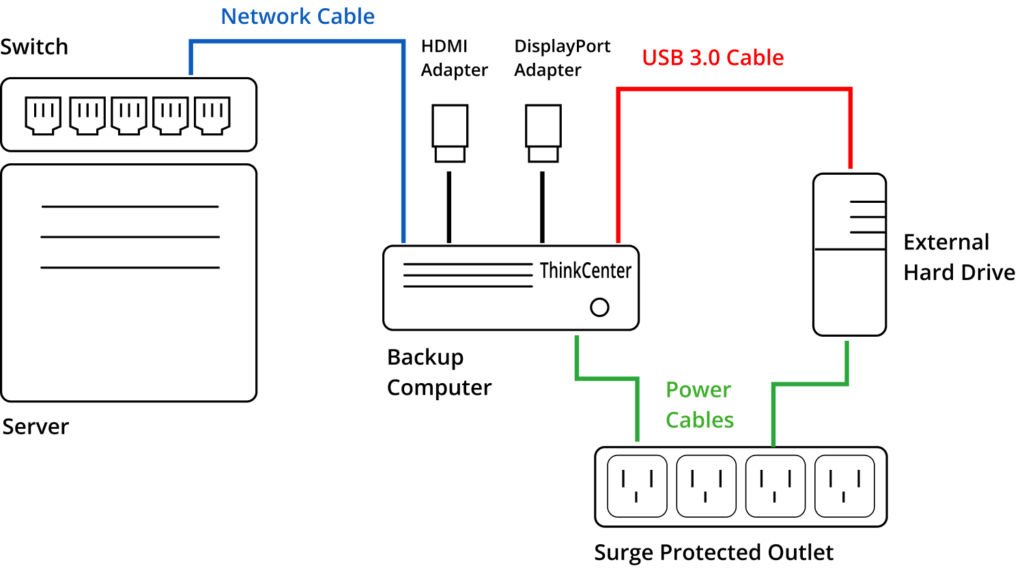
Diagram
Contacting Adroit Technologies LTD.
Once everything is active, please notify us so we can begin on the rest of the work. You can reach us by email or by phone:
(250) 828-1198 OR helpdesk@atws.ca
Additionally, if you run into any issues during this process, call us for troubleshooting support.